Teams
A team is the container for your squad, games, and season stats. You can manage multiple teams from the same account, for example if you coach an U10s and an U12s group in the same club.
Creating a team
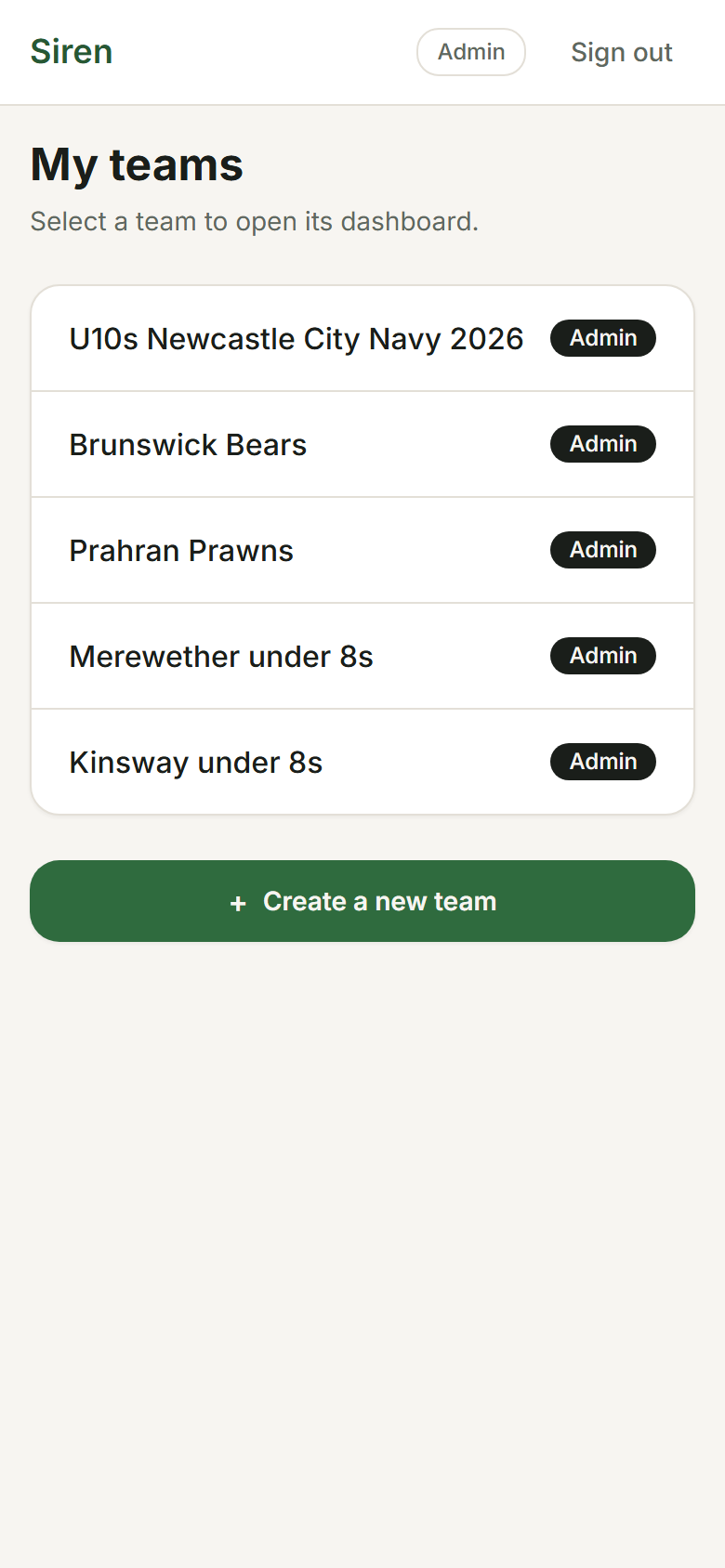
- From the dashboard, tap New team.
- Enter a team name (e.g. Brunswick U10s Blue).
- Choose a sport (AFL, netball or rugby league) and an age group. These set which positions appear during a live game, how long each quarter or half runs, and how rotation suggestions are generated.
- Tap Create team.
Renaming a team
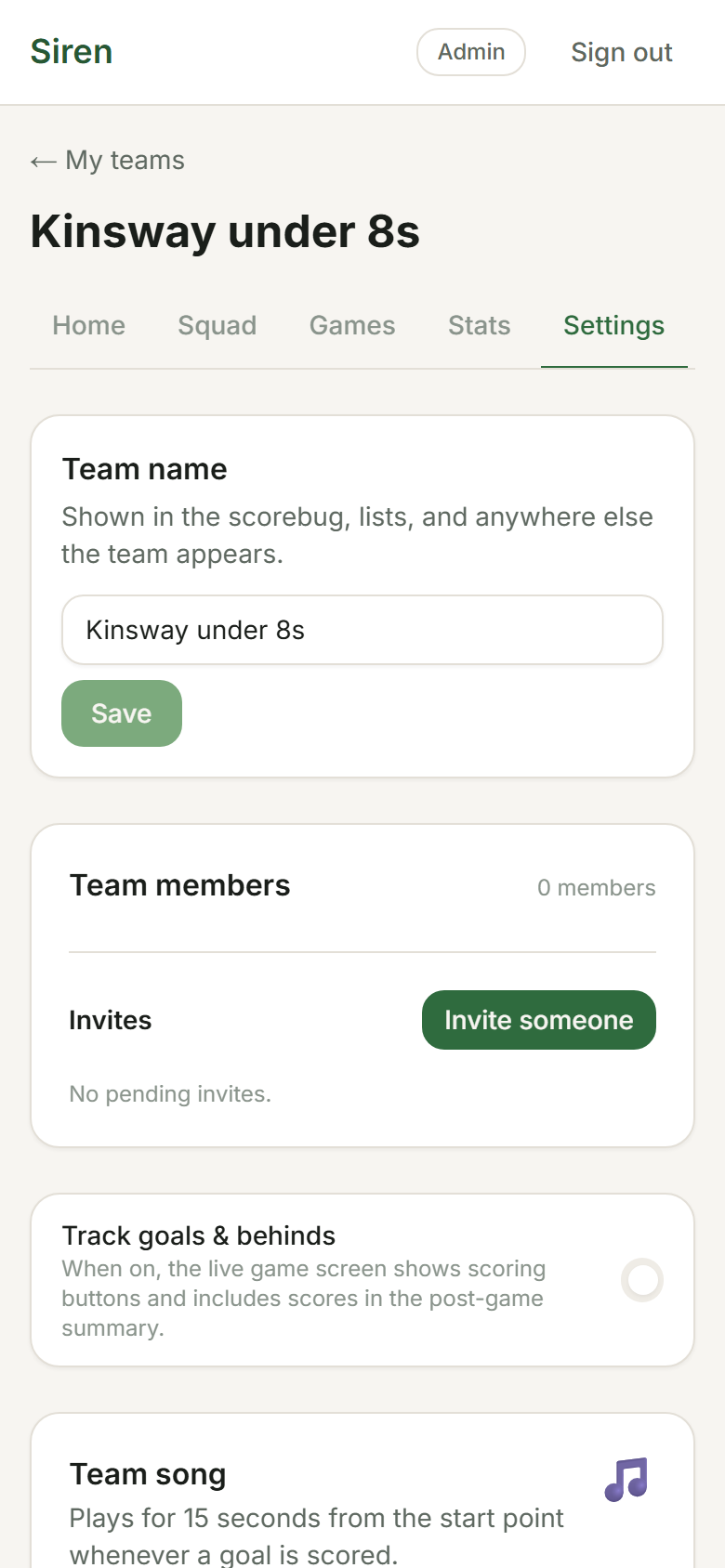
- Open the team and tap the Team tab.
- Edit the team name field.
- Tap Save.
Age groups and position layouts
The age group sets the position layout that appears during a live game. AFL uses three lines at every age (FORWARD / CENTRE / BACK), with more players on the field as kids get older — from 6 a side at Under 8 up to 18 a side (16 for girls) from Under 16. Netball uses 7 fixed positions across three thirds: GS, GA, WA, C, WD, GD, GK (Set plays 5: GS, GA, C, GD, GK). League splits the field into Forwards and Backs, from 6 a side at Under 6 up to 13 a side from Under 12.
The age group also sets the periods. AFL and netball play four quarters. League Under 6 to Under 9 plays four 8-minute quarters; Under 10 and up plays two halves. From Under 13, league uses the international laws (no vests or kicking rotations, and penalty and field goals count).
The rotation algorithm tracks how long each player has spent in each line or position so it can suggest fair swaps. See Rotations for details.
Admin roles
The coach who creates a team is automatically the team admin. Admins can:
- Rename or delete the team
- Add and remove players from the squad
- Create, edit, and delete games
- Invite other coaches to help manage the team
Deleting a team
To delete a team, open the Team tab and scroll to Danger zone. Tap Delete team and type the team's name to confirm. This permanently removes all games and stats for that team. Anyone can leave a team from the same place, or from their account page.