Live game
The live game screen is your sideline companion. It shows the current lineup laid out on the playing area, a countdown clock, suggested rotations (when applicable), and a scoreboard, all in one view. Here's how to use it.
The exact controls vary by sport. AFL, league, union, football (soccer) and basketball use rolling subs, so a sub timer and a swap card suggest who comes on during play. Netball subs at the breaks, so it shows the next-quarter reshuffle at every break instead. League also tracks its junior laws: FR and DH vests, goal-kick turns and kickoff turns; union has none of them. Football keeps its keeper in goal for the whole half: at half-time Siren plans the next half, starting with who takes the keeper top, and Replace keeper (long-press the keeper) changes it mid-half. Basketball subs at a dead ball through the table, tracks each kid's fouls (five and they're out), and its clock waits at 0:00 for the real hooter, since the stadium clock stops in the last minutes. Touch football and Oztag roll subs on and off whenever you like (make the change when you have the ball), and a mixed team keeps its cap on boys, shrinking the field when it's short of girls; see Rotations. Every sport has a lineup picker, scoring buttons and a long-press player-actions sheet.
Futsal runs on football's live screen, drawn on a court, with futsal's words: the back, the wings and the front. Its keeper can be swapped mid-half, as in football.
Hockey runs on it too, on a hockey pitch, in halves or quarters. Its keeper changes only at a break: two minutes before one, Siren names who's in goal next so they can kit up.
Before the game: the lineup picker
After marking availability, you're taken to the lineup picker. The app auto-suggests a starting lineup based on how much time each player has had in each spot in previous games this season.
- Review the suggested lineup. Players are placed across your sport's layout — AFL lines (FORWARD / CENTRE / BACK), netball positions (GS / GA / WA / C / WD / GD / GK), or league Forwards and Backs — with the rest on the Bench.
- Tap any two players to swap them — even between positions or to and from the bench.
- League from Under 8: long-press a player on the field and tap Make First Receiver (or Make Dummy Half from Under 9) to pick who wears the vest first. The Vest rotation plan fills in the later periods for you.
- When you're happy, tap Start Q1. League teams from Under 10 play halves, so their button reads Start H1.
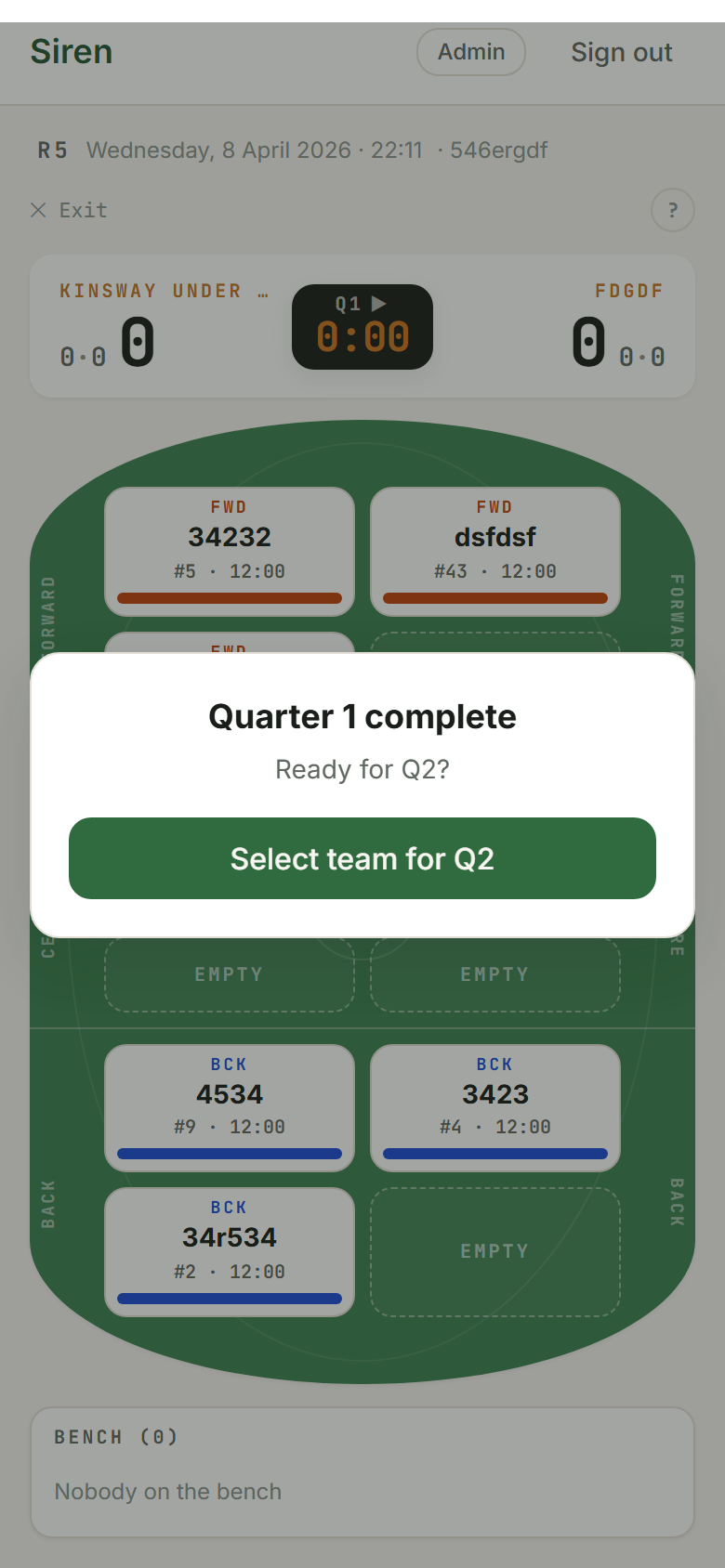
The on-area view
Once the first quarter or half starts you see:
- Scoreboard: pinned to the bottom of the screen. Your team's score is on the left, a dark clock pill in the centre, and the opponent's score on the right. Tap the clock to pause, resume or end the quarter (or half) early.
- Swap card (AFL and league): a dark card above the playing area showing suggested rotations and a countdown ring. Tap it to expand the details. See Rotations for how suggestions work.
- Playing area: AFL shows FORWARD at the top, CENTRE in the middle and BACK at the bottom. Netball shows the ATTACK, CENTRE and DEFENCE thirds. League shows a pitch with the Forwards at the top and the Backs at the bottom. Each player is a tile with their name and, where your sport uses them, a position label.
- Bench: players not currently on the area, shown below.
- League extras (Under 8 to Under 12): a Kickoff card at the start of each period, and FR / DH badges on the players wearing the vests.
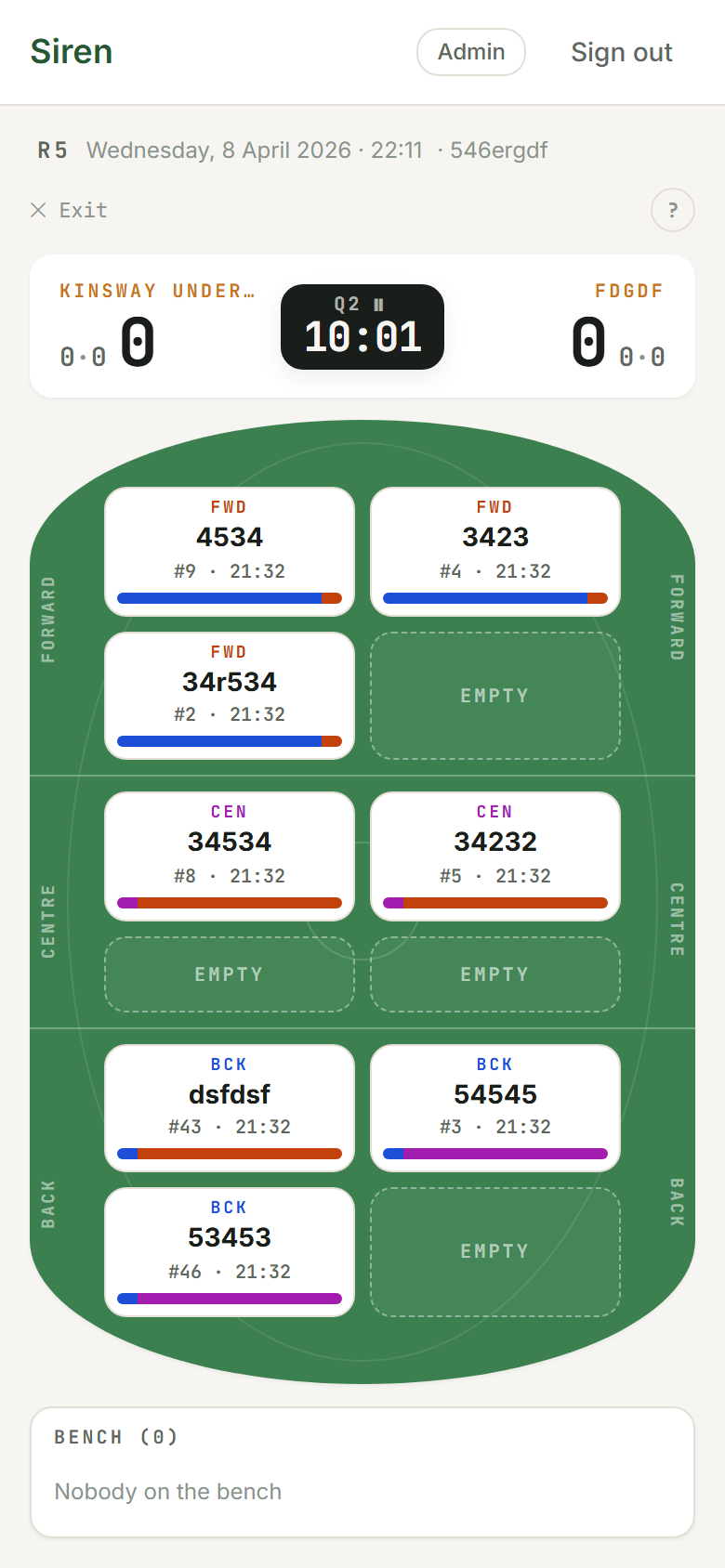
Recording scores
This needs scoring switched on for your team. See Track scoring.
- Tap a scoring player on the playing area to select them. In AFL, league and union this is any player on the field; in netball it's only GS or GA (the shooter positions).
- Tap the scoring button that appears. AFL: + Goal or + Behind. Netball: + Goal. League: + Try, plus + Penalty goal and + Field goal from Under 13. Union: + Try, plus + Penalty goal and + Drop goal from Under 10.
- League and union from Under 8: after a try, the conversion picker opens. Pick the kicker, then tap Made or Missed.
- Made a mistake? Tap Undo on the strip just above the scoreboard to take back the latest score.
- Each team also has small score buttons beside its score: AFL +G and +B, netball +G, league +T and +C (plus +PG and +FG from Under 13), union +T, +C, +PG and +DG. On your side they ask who scored; on the opponent's side they add the score straight away.
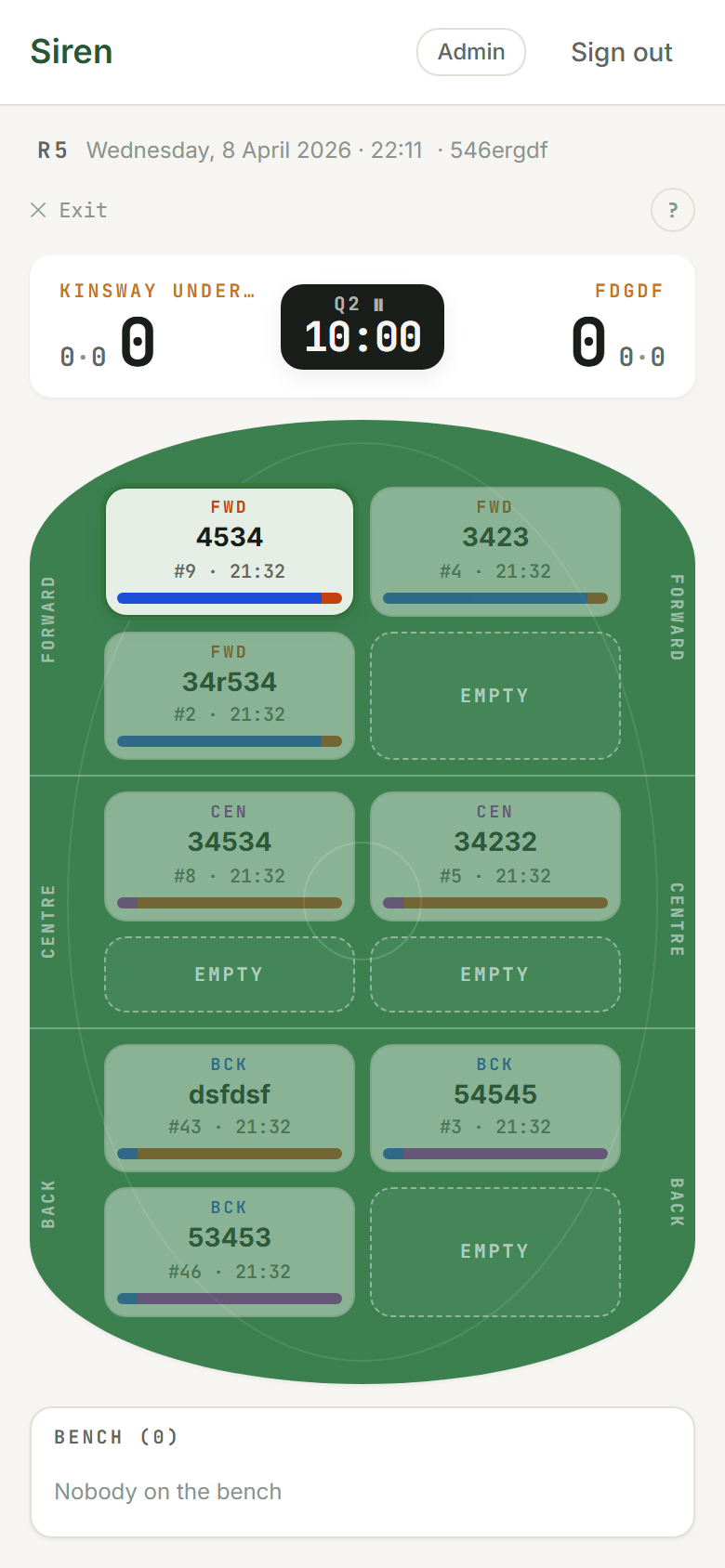
Making a manual substitution
In AFL and league, to swap a player without waiting for a suggestion:
- Tap a player on the playing area. They get a selection ring.
- Tap a player on the bench.
- AFL shows a confirmation dialog with the pair. Tap Confirm to commit or Cancel to back out. League makes the swap straight away.
Netball subs at the quarter break. If your team has turned on Allow mid-quarter subs (Team › How we play), long-press a player on court, tap Switch player, then pick who comes on.
The Sub Due alert (rolling subs)
In AFL and league, when the sub interval timer reaches zero the swap card shows NOW and expands automatically to show the suggested swaps, and a banner under the top bar reminds you it's time to rotate. It doesn't block the screen, so you can still record a score; tap Got it to clear it. The sub interval (1 to 10 minutes) is set under Game settings on the lineup screen, or with the Game settings button below the field during the game.
You can tap Make swap next to any individual pair to apply just that one swap, or tap Make all N swaps to apply everything at once. After any swap is committed, the card collapses automatically and the timer resets.
Netball doesn't use a rolling sub timer — rotations happen at the quarter break instead (see below).
Player actions: keep on, injury, loan
Long-press a player tile to open the player-actions sheet (or tap the player, then Player actions). What's on it depends on your sport:
- Switch player: selects the player so your next tap makes the swap. In netball it only appears when mid-quarter subs are allowed.
- Keep on field (AFL only): the player is never subbed out. Good for a player who needs extra game time.
- Keep in a zone (AFL): the player can rotate off temporarily but always returns to the same line. Netball's version is "Keep in position next break". League has neither — give a player the Keep on role (Squad › Role) instead, and the suggestions won't take them off.
- Replace First Receiver / Replace Dummy Half (league, on the player wearing the vest): pick a different player to take the vest for the rest of the period.
- Mark injured: takes the player out of the rotation. If they're on the field, AFL and league ask who comes on in their place; in netball their position empties and a picker asks who fills it. Their tile shows an INJ badge. Tap Back on to return them.
- Lend to opposition: marks the player as lent (common in junior teams when numbers are uneven). Shows a LENT badge. AFL shows each player's season total of loan minutes. Tap Bring back to return them.
Ending a quarter or half
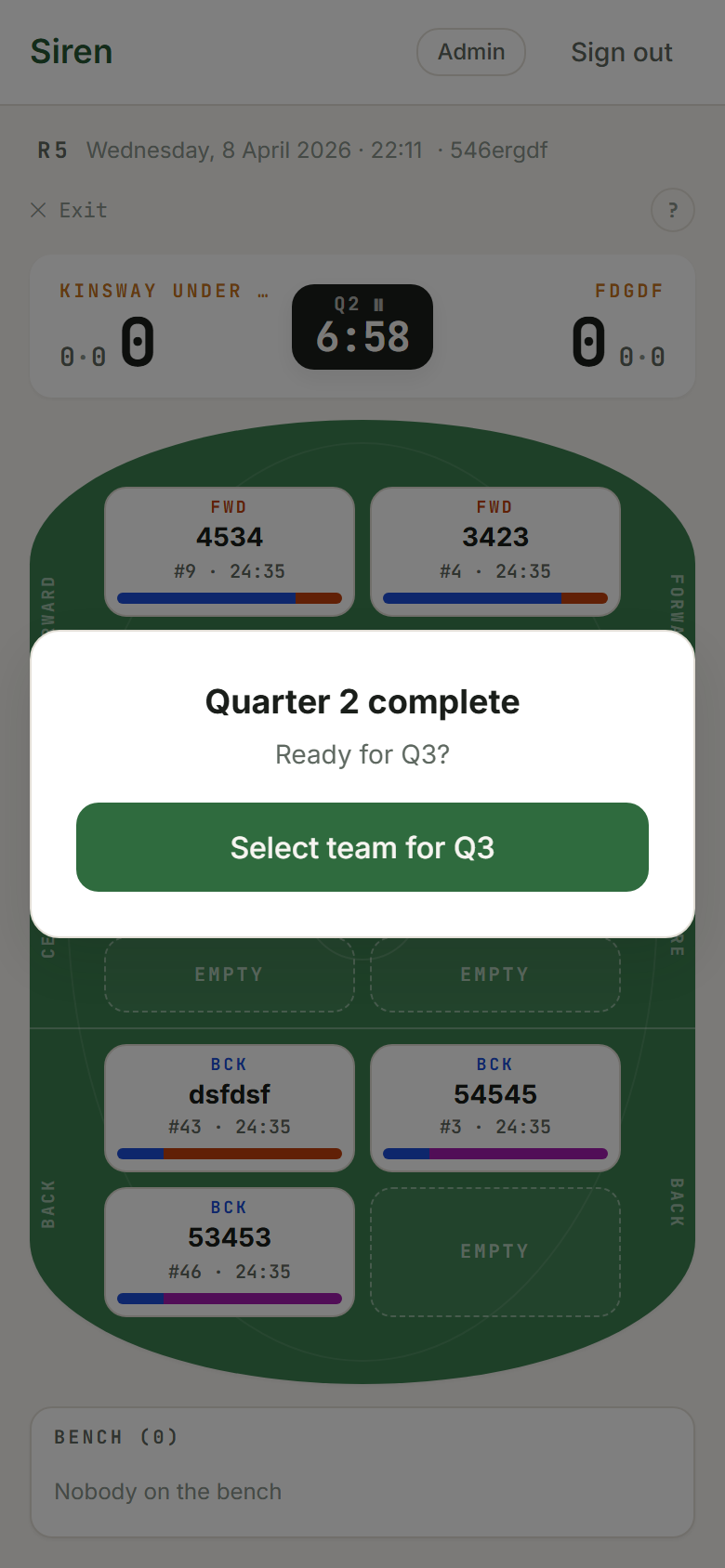
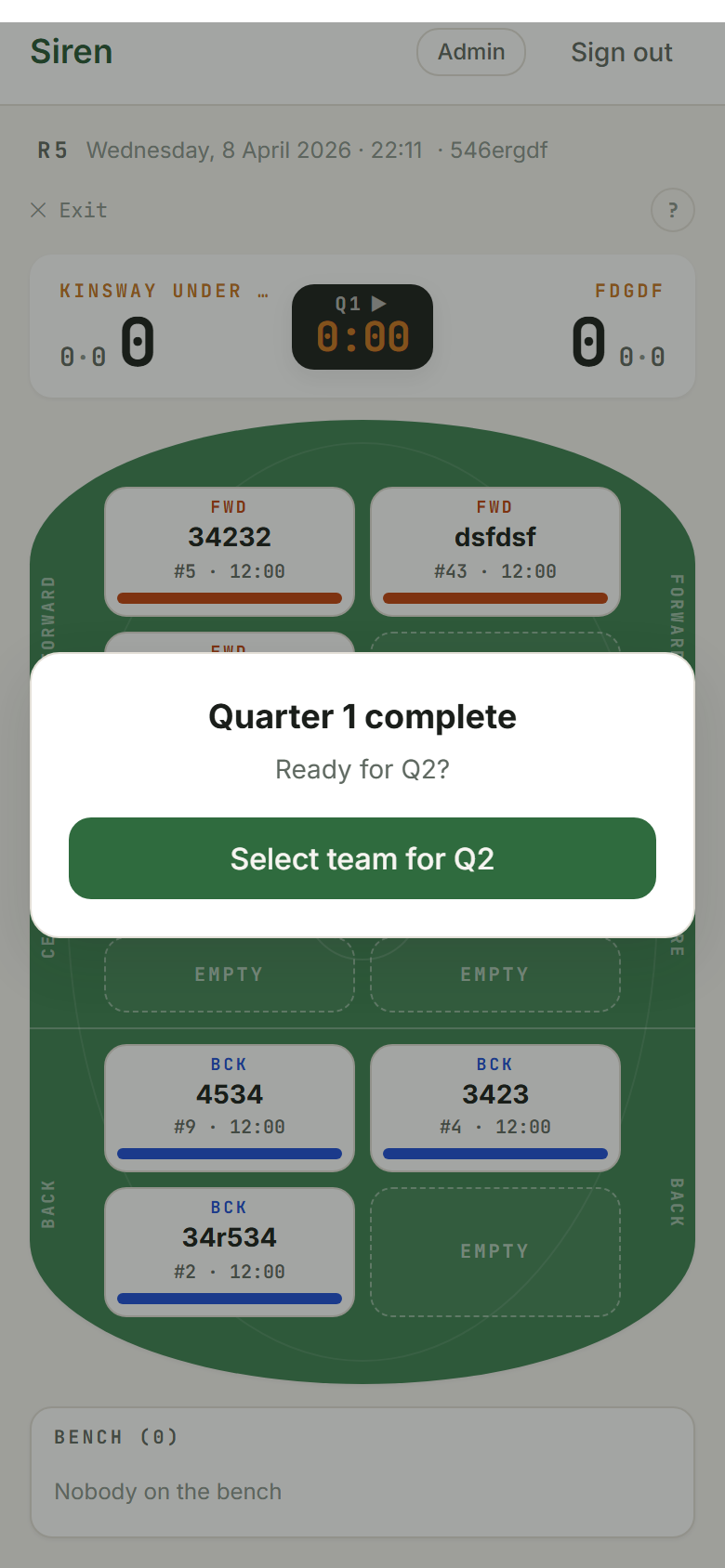
- When the clock runs out, the quarter (or half) ends by itself and the clock stops. In AFL a Quarter complete card lets you add a score that landed on the siren before you move on.
- If the siren beats the clock, tap the clock and choose End Q{n} now (league from Under 10: End H{n} now).
- Tap End Q{n} (or End H{n}) to confirm. Players on the field are credited the full period.
- The break screen appears between periods. AFL, netball and league Under 6 to Under 9 play four quarters; league from Under 10 plays two halves. After the last one, the full-time review opens: check the score, then tap Finish game.
Breaks between quarters or halves
In AFL and netball, the app shows a Lineup for Q{n} screen at each quarter break. This is your chance to adjust who plays where in the next quarter. For netball this is the main moment of substitution; for AFL it's an optional reshuffle on top of the rolling subs you made during the quarter.
- Suggested is on by default: the algorithm has already placed players in the fairest positions. You can switch to Keep last quarter or Set manually. AFL also offers Rotate lines, which moves everyone one line along.
- Tap any two players to swap them — even across positions or to and from the bench.
- INJ and LENT players are greyed out and cannot be moved onto the playing area.
- Game settings (collapsed) is where you lend a player or mark an injury. AFL also lets you change the on-field size there.
When you're ready, tap Start Q{n}.
League has no separate break screen. The live screen shows the score and a Start Q{n} button (Start H{n} from Under 10). From Under 8 to Under 12, a vest card asks who wears the FR (and DH) vest next. Under Manage availability you can add a player who's turned up, mark a player out (a bench player comes on in their place) or mark someone injured. You can still tap players to swap them before you start.
The walkthrough
The first time you set up a lineup, Siren offers a walkthrough of the key features for your sport: positions, bench, making a sub, reading swap suggestions, scoring and the alerts that apply. League adds steps for vests, goal kicks and the unbroken-period rule where they apply. You can skip it or step through it, and tap the ? at the top of the live screen to open it again.
Related topics: Rotations · Track Scoring · Stats