Squads
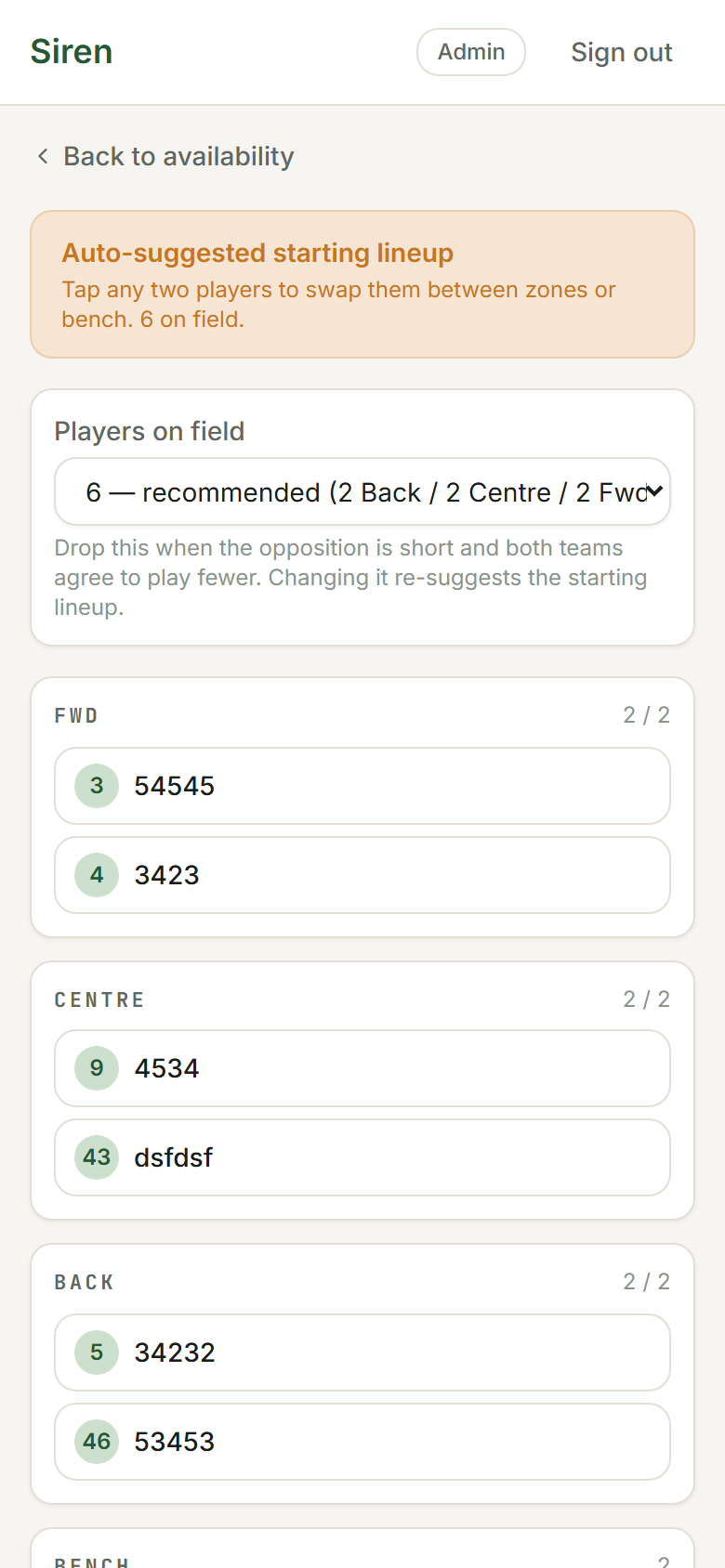
The squad is your roster of players for a team. You can add, edit, and remove players at any time, and mark who is available for each game.
Adding a player
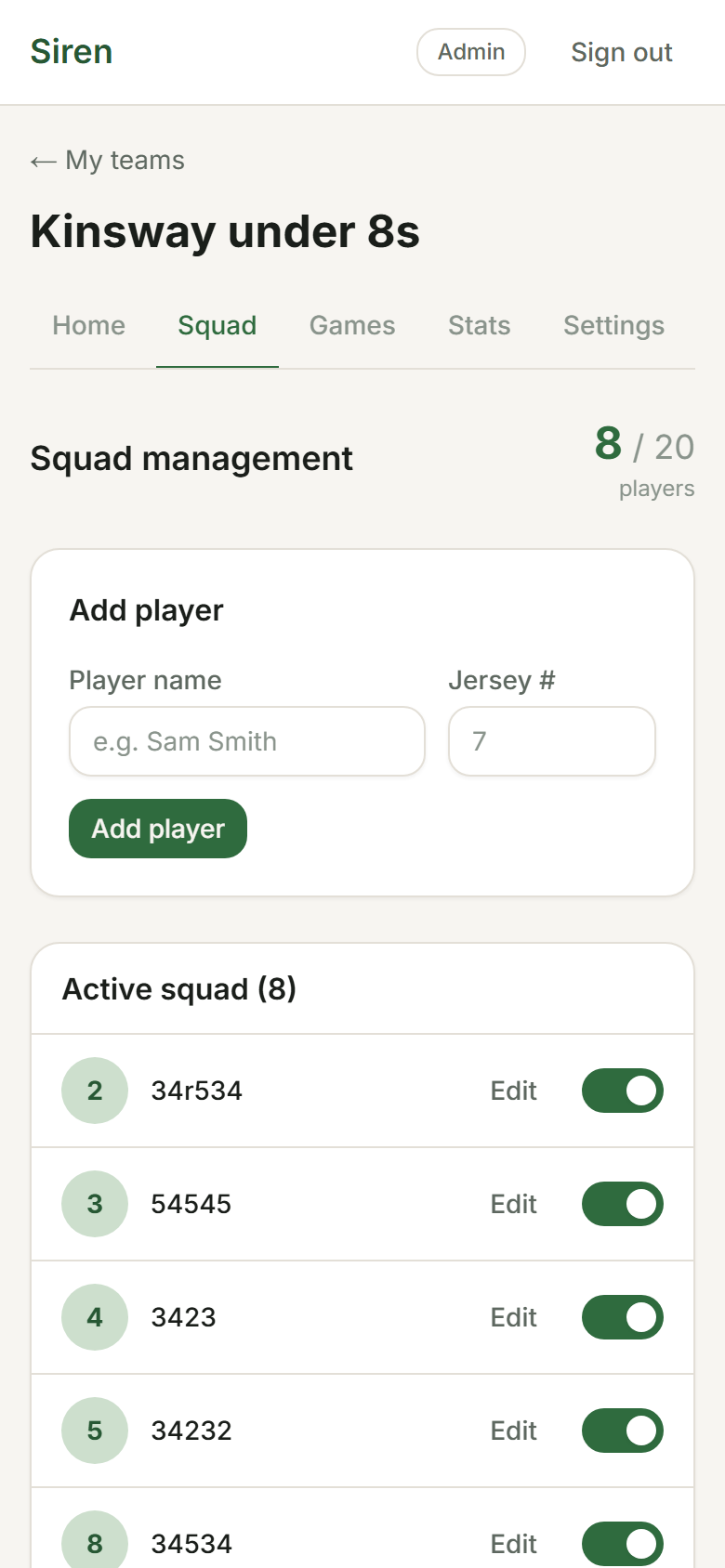
- Open your team and tap the Squad tab.
- Find Add player at the top of the page.
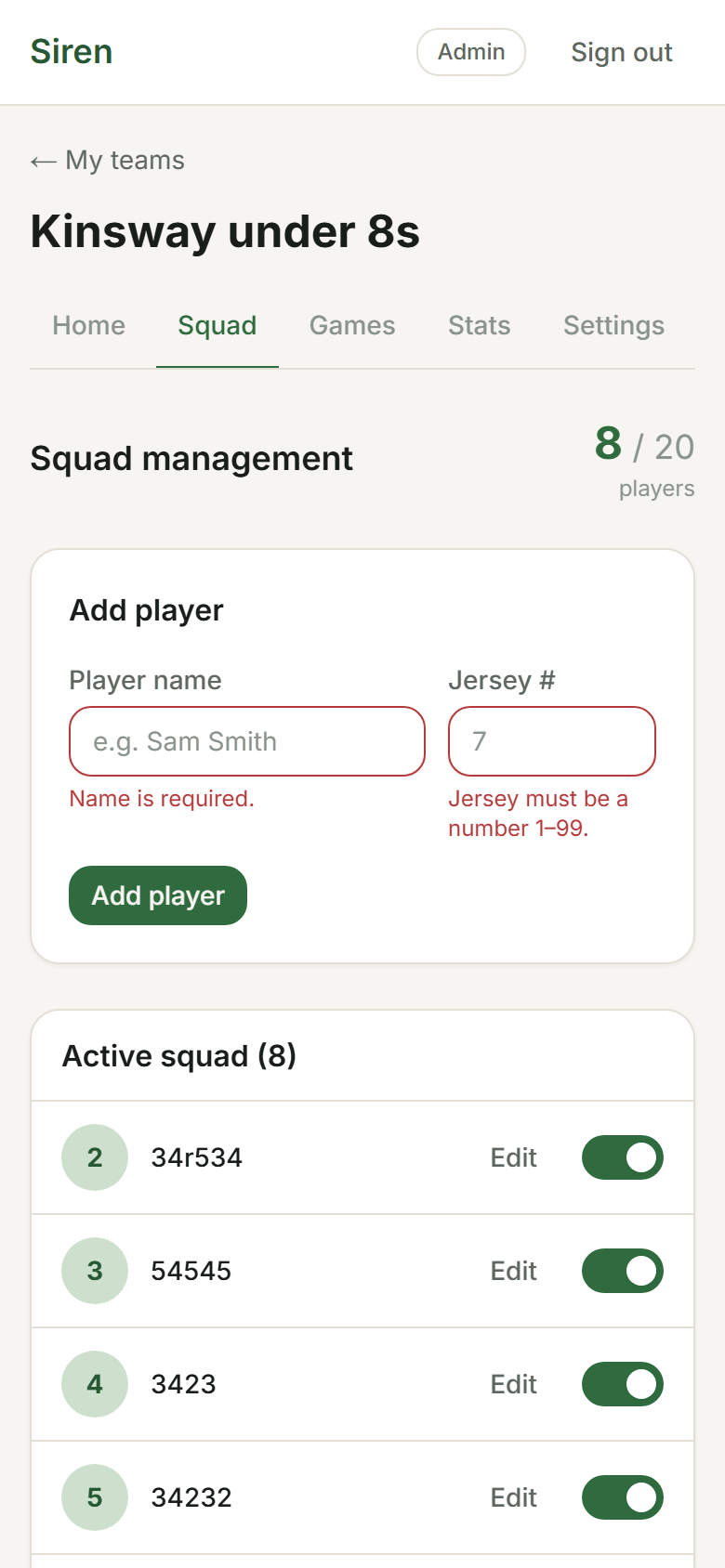
- Enter the player's full name. AFL and league squads can also add a jersey number (optional). Netball squads don't use numbers, so there's no number field.
- Tap Add player. The player appears in the active squad list.
Editing a player
Tap a player's row in the squad list to open the edit form. Change the name (or, for AFL and league, the jersey number) and tap Save.
Removing a player
Open the player's edit form and tap Remove from squad. The player is marked inactive and removed from future lineups. Their historical stats are kept.
Player roles — where each kid plays
Each player on the squad has a Role. What it offers depends on how your team plays (Team tab › How we play):
- Plays as — the lines or positions they play. Siren suggests them only there. Pick none and they play anywhere.
- Main — their main position or line, where Siren puts them first (Set positions, Partners, Named positions, preferred lines).
- Takes a turn in goal — soccer's version: on unless a kid would rather not go in goal.
- Plays every minute — they play as much as the rules allow, every game.
- Open the Squad tab.
- Tap Role on a player, choose, and tap Save role. Their role shows under their name.
To mix or group kids — older with younger, or a kid who plays best next to a mate — add a Keep apart or Keep together rule under Team › How we play › Rules.
Setting availability before a game
Only available players are included in the lineup and rotation suggestions. You can set availability the night before, or fix it on the day.
- The night before: open the game and tap Availability. Mark each player in or out, then tap Continue to lineup.
- On the day: tap Start game day. The Who's here line at the top of the lineup shows who's in; open it to mark a no-show out and the lineup rebuilds without them.