Getting Started
You can be up and running in about five minutes. This guide walks through every step: creating an account, setting up your team, adding your squad, and scheduling your first game.
1. Create your account
- Go to the login page.
- Enter your email address and tap Continue.
- Open the sign-in link we email you. New email? You'll land on your dashboard straight away. No password to remember.
Already have an account? Go to /login instead.
2. Create your first team
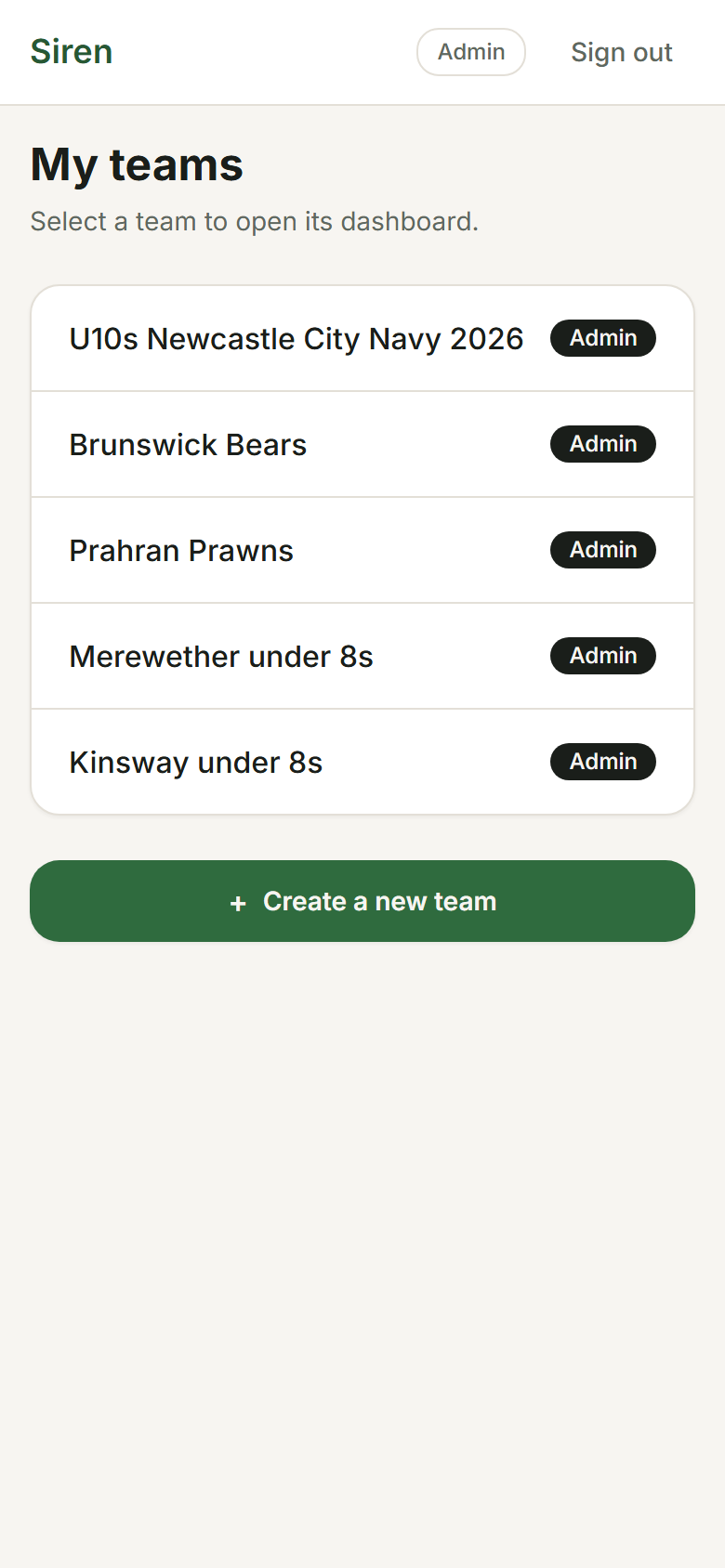
- On the dashboard, tap New team.
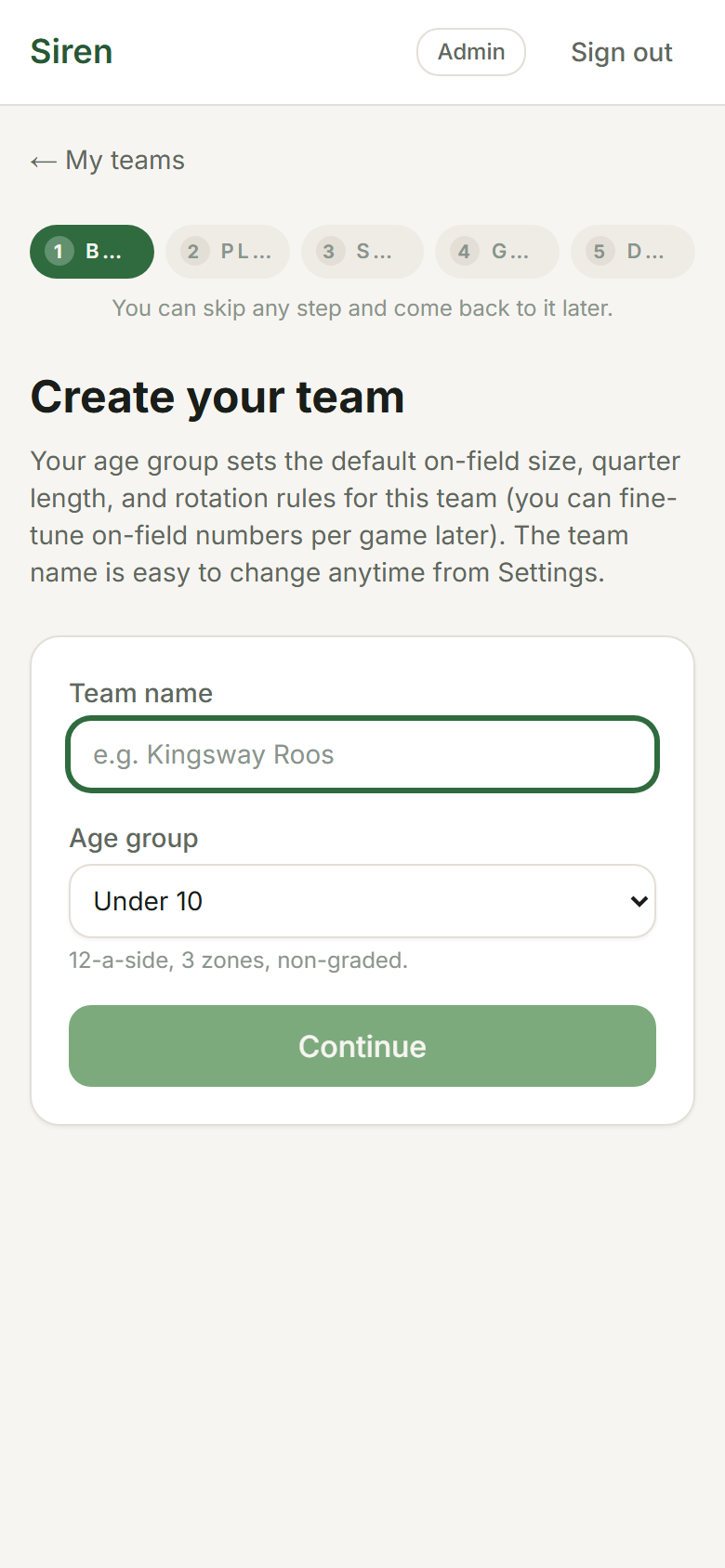
- Give your team a name (e.g. Brunswick U10s), pick a sport (AFL, netball or rugby league), and select the age group. The age group controls how many positions appear during a live game, how long each quarter or half runs, and how rotation suggestions are generated.
- Tap Create team. Your new team card appears on the dashboard.
💡
You can rename the team or change its settings any time from the team's Team tab. See Teams for details.
3. Add your squad
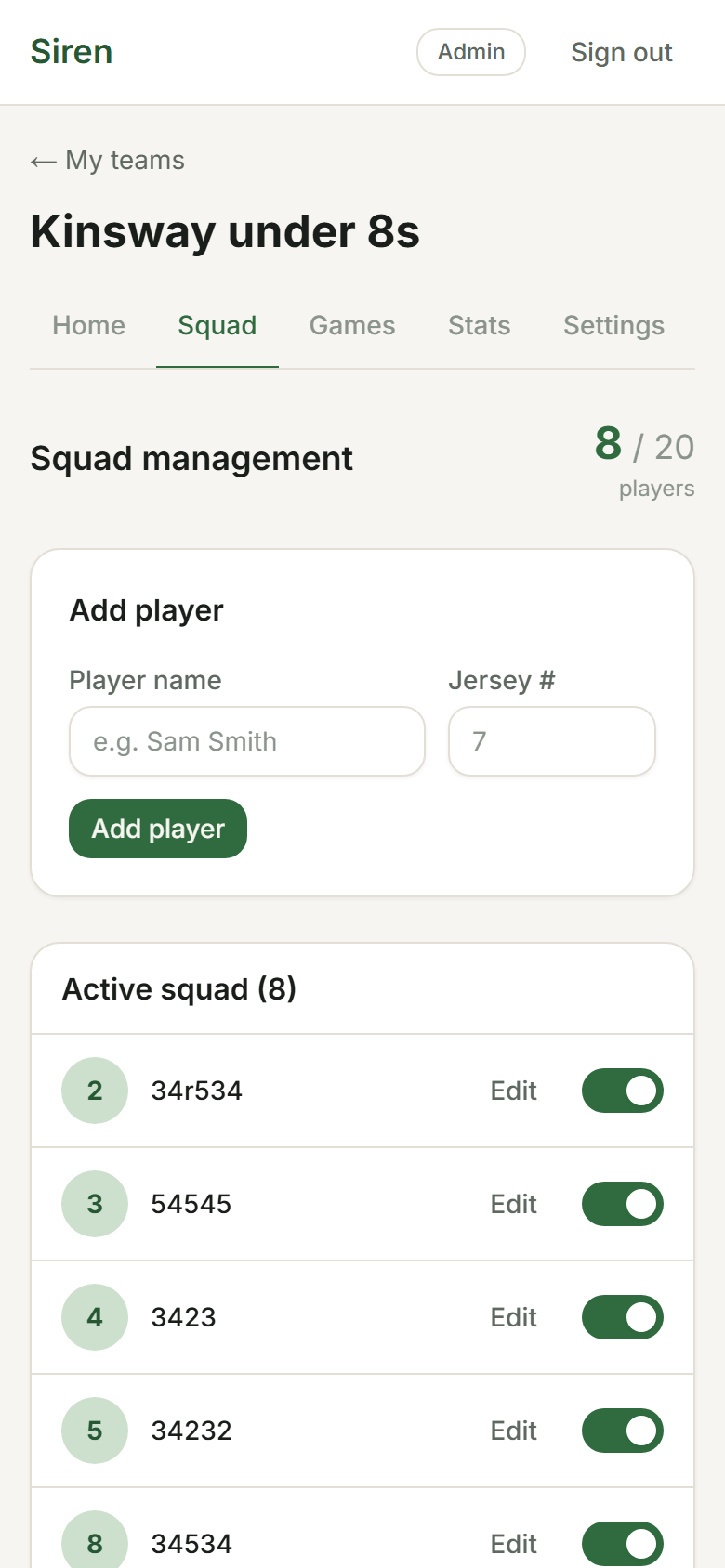
- Open your team and tap the Squad tab.
- Under Add player, enter the player's full name and, for AFL and league, an optional jersey number (netball squads don't use numbers, so there's no number field). Then tap Add player.
- Repeat for every player in your squad.
You can add more players at any time, including on game day. See Squads for editing, removing, and managing availability.
4. Schedule a game
- Open your team and tap the Games tab.
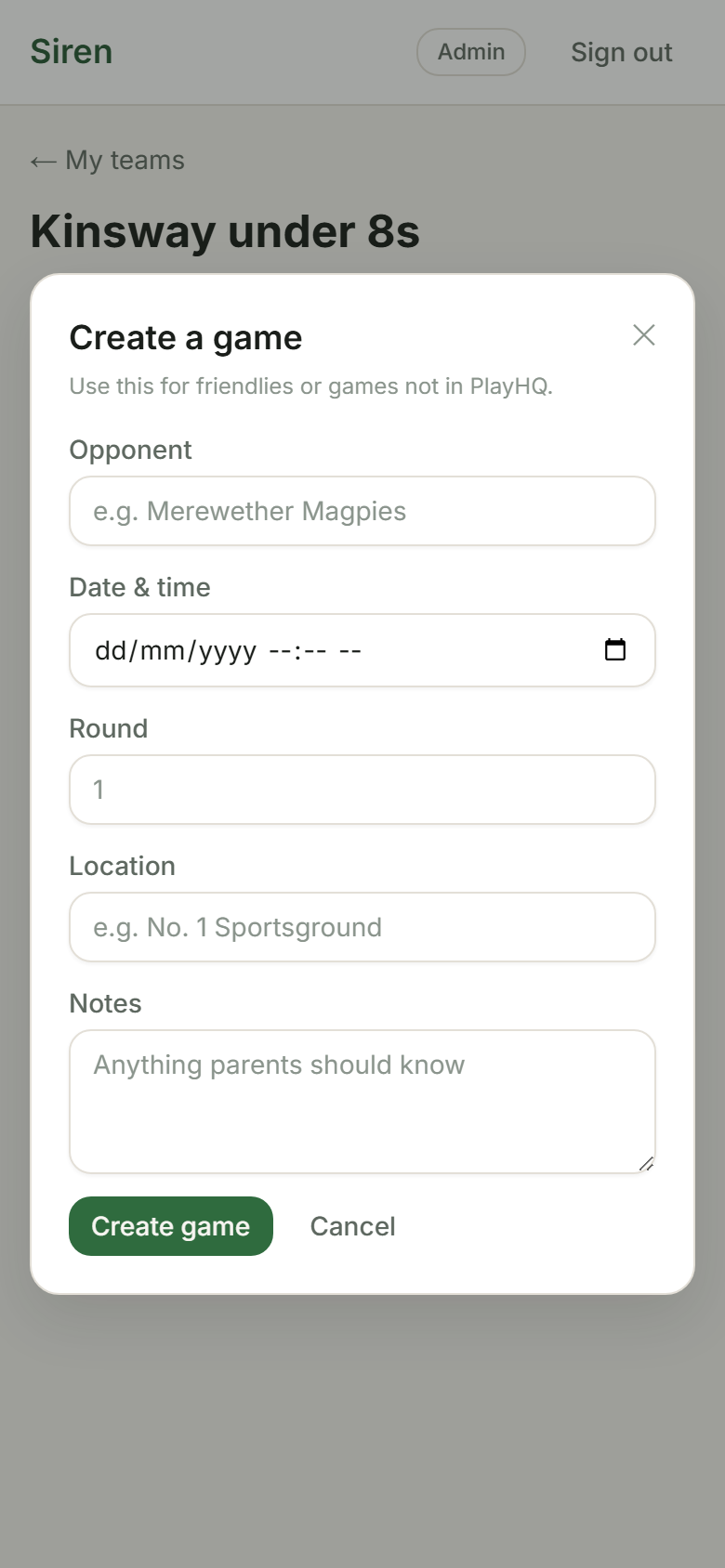
- Tap New game. Fill in the opponent name, round number, date, time, and optional venue.
- Tap Save. The game appears in your games list with Upcoming status.
💡
On game day, tap Start game day on the Today tab: mark who's here, check the lineup, then Start Q1 (league from Under 10: Start H1). See Live Game for a full walkthrough.
What's next?
- Live Game → Running a game on the day: lineups, scoring, subs, and the breaks between quarters or halves.
- Rotations → How the algorithm suggests fair swaps.
- Stats → Everything you can see in the Stats tab after games are played.