Games
Each team has a games list where you can schedule upcoming matches, open the live game view on the day, and review past results.
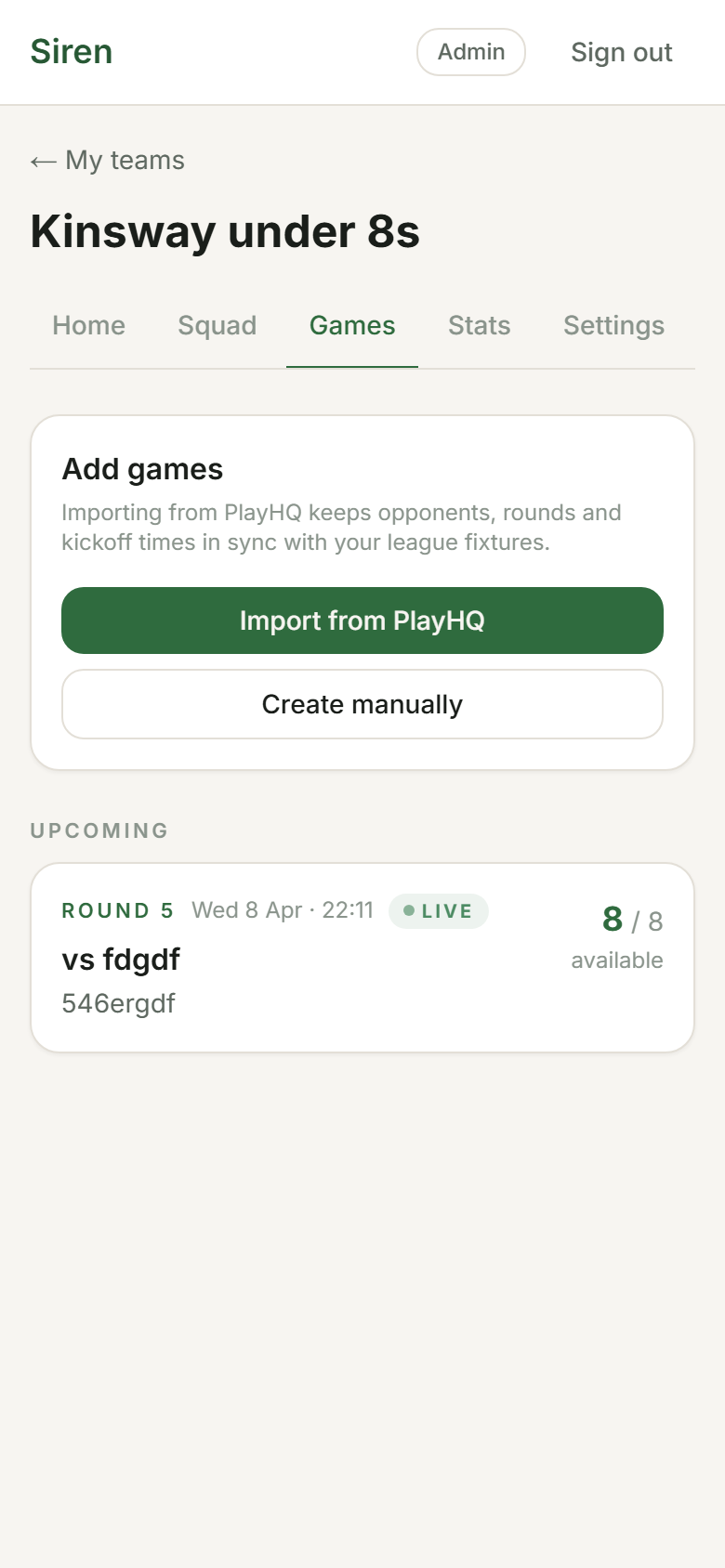
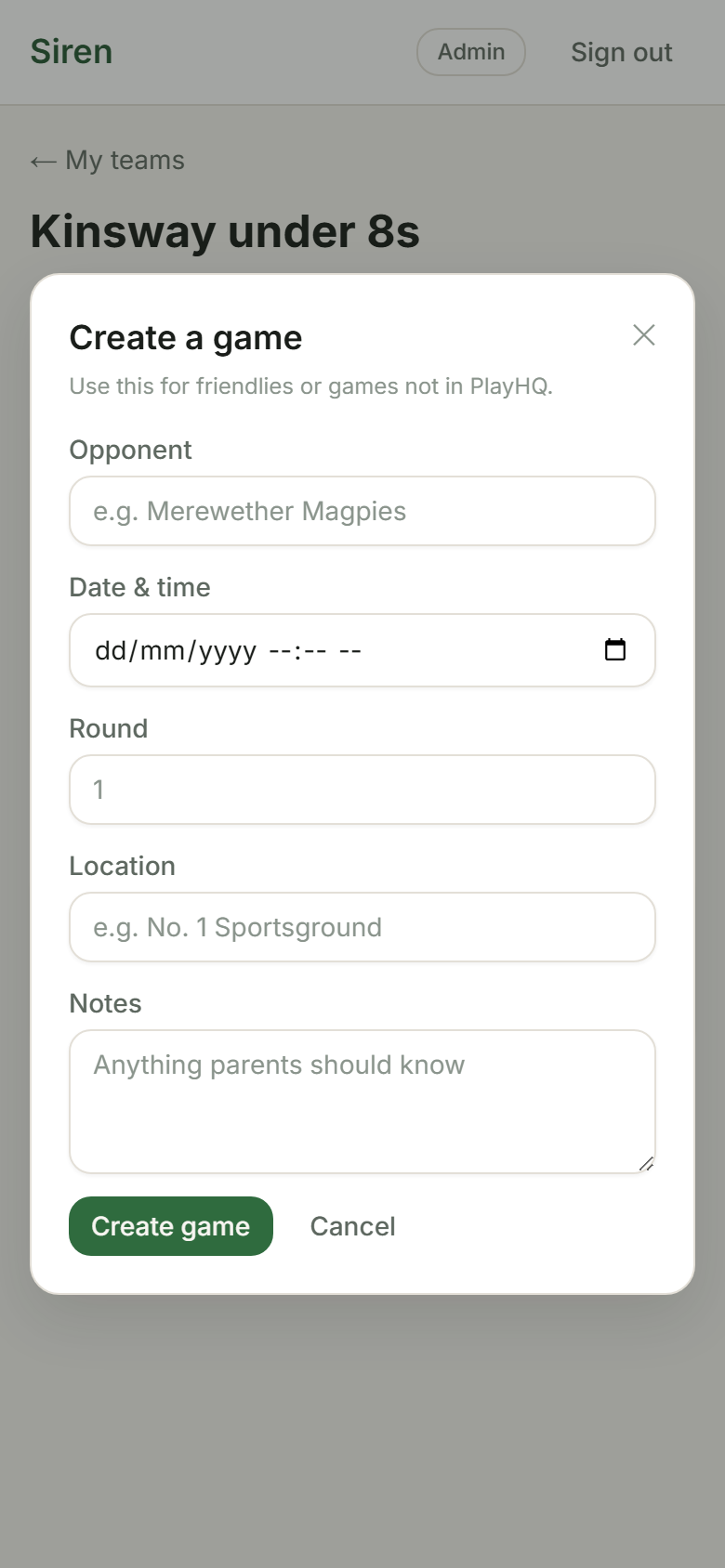
Creating a game
- Open your team and tap the Games tab.
- Tap New game.
- Fill in:
- Opponent:the other team's name
- Round:round number for the season
- Date and time
- Venue (optional)
- Tap Save. The game appears as Upcoming.
Game statuses
- Upcoming:game is scheduled but not yet started. Tap Plan lineup any time, or Start game day on the day.
- In progress:the game has been started. Tap Back to live game to return to the live view.
- Final: the game is finished. Tap Summary for the result and the group-chat summary (league opens its full-time screen); stats are in the Stats tab.
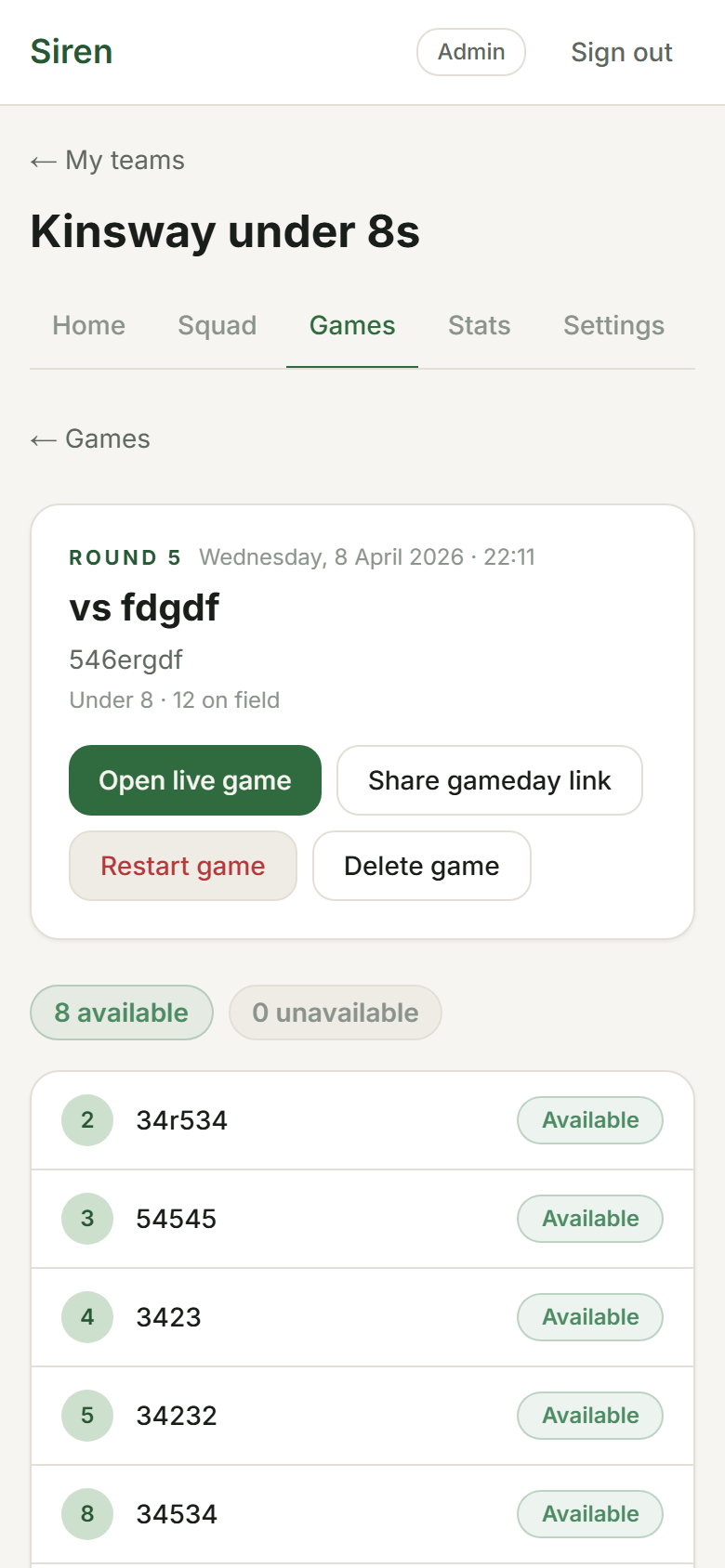
The game detail page
Tap any game in the list to open its detail page. From here you can:
- See the final or current score
- See who scored, if scoring was tracked: AFL goal kickers, netball goal shooters, and league try scorers and kickers
- Start or re-enter the live game view
- Under More: the game-day link, edit details (opponent, round, date, etc.), restart or delete the game
💡
Scoring is switched on for the whole team under Team › Game-day extras (Track goals & behinds for AFL, Track goals for netball, Track points for league). It controls whether scoring buttons and per-player tallies appear during the live game. See Track Scoring for what this unlocks.
Editing a game
Open the game detail page and tap Edit. You can change the opponent name, round, date, time, and venue at any time, even after a game has started.
Deleting a game
Open the game detail page, tap Edit, then scroll to Delete game. This removes all events recorded for that game and cannot be undone.
⚠️
Deleting a game removes all recorded rotations, scores, and stats for it. Season stats and season balance will be recalculated without that game.